Adding a Contact Form to Ghost is one paste into an HTML card if you publish posts and pages, or one snippet of code injection for a sitewide form. The Helpdesky Contact Form drops in as one container div and one script tag, handles its own validation, and lands every submission in your Helpdesky inbox where you can reply by email.
This guide is for anonymous visitors. There is no login, no HMAC, no backend wiring. If you need a portal for signed in users instead, see the Ticket Center Setup Guide.
Why pick the Helpdesky Contact Form for Ghost? It is free for the first 15 conversations every month, you do not have to plug in SMTP or stand up a separate Ghost integration, and the whole thing is one snippet you paste into an HTML card. Every reply you send back from your Helpdesky inbox is delivered straight to the visitor's email.
Set Up Your Helpdesk
Open the Helpdesky dashboard and go to Contact Form in the sidebar. Copy the embed snippet at the top of the page. It already has your Helpdesk ID filled in:
<div id="hdh-contact-form"></div>
<script src="https://helpdesky.io/contact-form.js"
  data-helpdesk-id="YOUR_HELPDESK_ID"></script>
While you are there, also enable messaging from the Messages sidebar item if you have not already. The toggle is at the top of the Messages page.
Add the Embed Code (HTML Card)
For a single page (most commonly Contact or Support):
- In Ghost Admin, edit the page where you want the form.
- Click the + icon and choose HTML.
- Paste:
<div id="hdh-contact-form"></div>
<script src="https://helpdesky.io/contact-form.js"
  data-helpdesk-id="YOUR_HELPDESK_ID"></script>
- Click Update to publish the page.
Add the Embed Code (Theme Injection)
If you want the form available on a custom route or you are editing a custom Ghost theme, add a new template (for example page-contact.hbs) inside your theme:
{{!< default}}

<main class="contact-page">
  <h1>{{title}}</h1>
  {{content}}

  <div id="hdh-contact-form"></div>
  <script src="https://helpdesky.io/contact-form.js"
    data-helpdesk-id="YOUR_HELPDESK_ID"></script>
</main>
Re upload the theme zip in Settings → Design → Change theme → Upload theme, then assign the template to your contact page by setting the page slug to contact.
Test It
Open the contact page in an incognito window and submit a test message. The conversation should land in your Helpdesky Messages inbox within seconds. If the page only shows the heading and not the form, your Ghost theme may sanitize HTML cards. Re upload the theme without a strict Content Security Policy in package.json's Ghost settings.
Next Steps
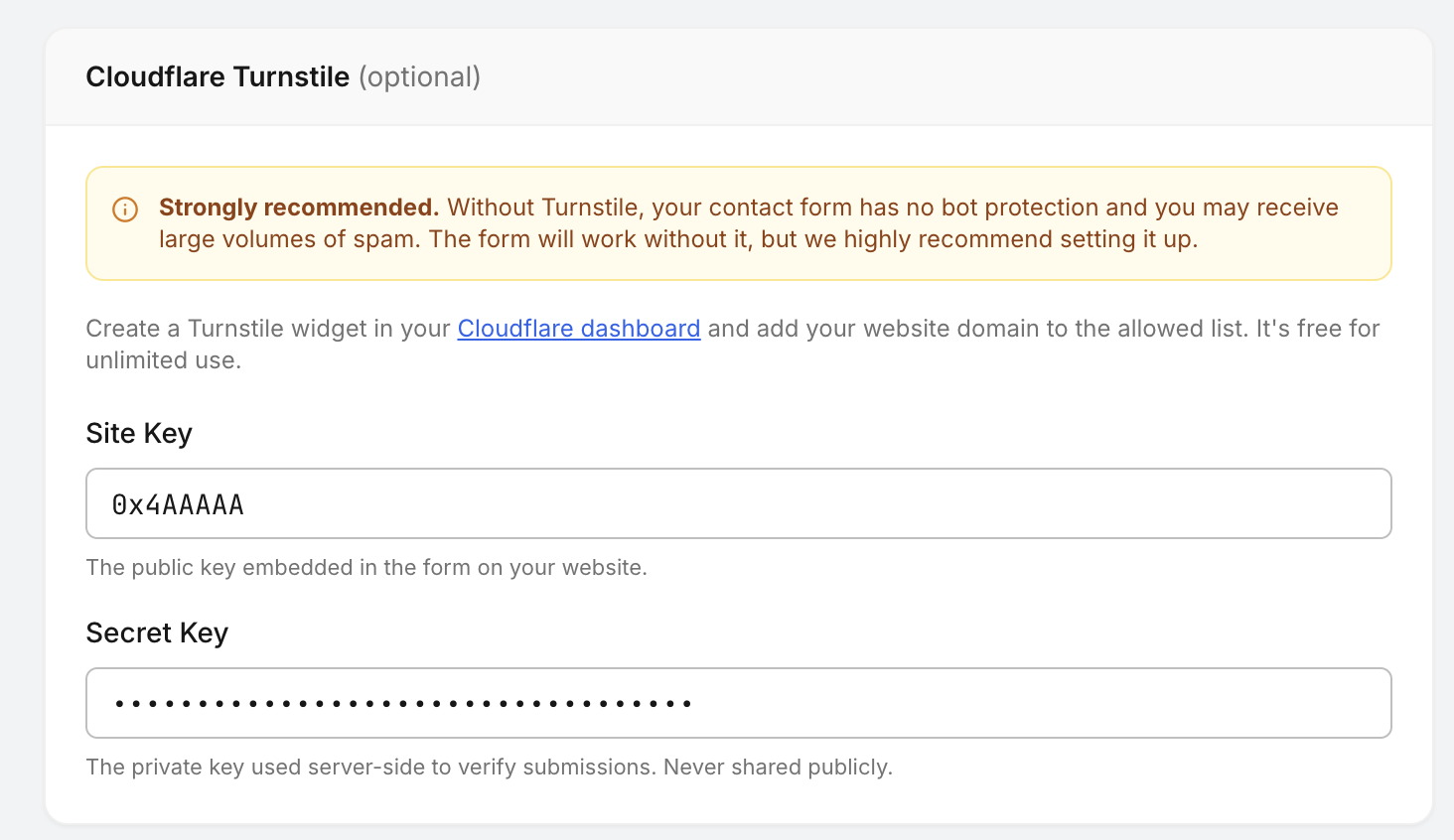
Route inbound support email into the same helpdesk by following the Email Forwarding Setup Guide. If you start getting bot submissions, layer on bot protection with the Cloudflare Turnstile Setup Guide. When you ship a signed in dashboard, swap the public form for a Ticket Center so users can see their full conversation history.
Cool Features
A couple of small things you can turn on once the basic form is live.
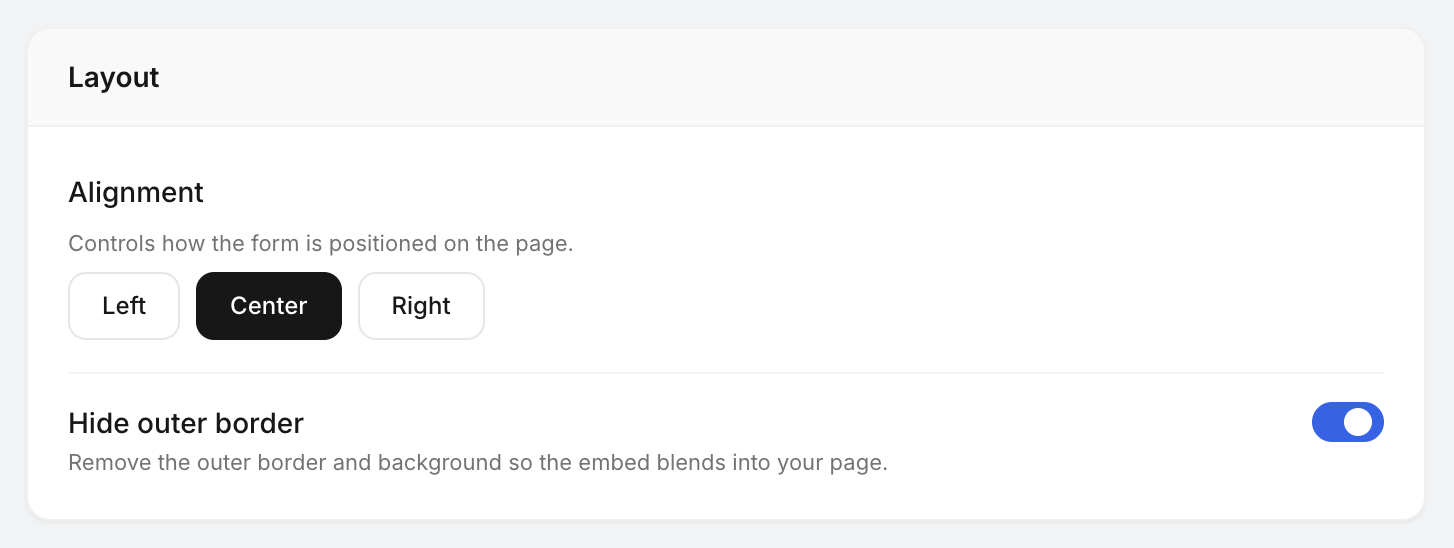
- Hide outer border: drop the form into any section without a background or border so it blends straight into your branding. From the Contact Form page, open the Layout section and toggle Hide outer border.
- Cloudflare Turnstile spam protection: if your domain is on Cloudflare, you can protect the form from bots in a few clicks. Open your Cloudflare account, go to Turnstile, add your domain, generate the keys, and paste them into the Helpdesky Contact Form settings. Full walkthrough in the Cloudflare Turnstile Setup Guide.