Adding a Contact Form to your Replit app gives visitors a clean way to send you a message without you wiring up email, SMTP, or a backend. The form drops in as a single script tag and submissions appear in your Helpdesky inbox.
This guide assumes you are vibe coding a public site or web app on Replit. The Contact Form is for anonymous visitors, so no HMAC or login is required. If you need a portal for signed in users instead, see Add a Ticket Center to Your Replit App.
Set Up Your Contact Form
Open the Helpdesky dashboard and go to Contact Form in the sidebar. Copy the embed snippet at the top of the page. It already has your Helpdesk ID filled in:
<div id="hdh-contact-form"></div>
<script src="https://helpdesky.io/contact-form.js"
  data-helpdesk-id="YOUR_HELPDESK_ID"></script>
While you are on this page, also enable messaging from the Messages sidebar item if you have not already. The toggle is at the top of the Messages page.
Add the Embed Code
In your Replit project, paste the snippet into the page where you want the form. For a plain HTML site, paste it inside the <body> of index.html. For a React or Vite app, place the container div in the page component and load the script in a useEffect or via <Helmet>. For a Next.js app, use the <Script> component.
The form renders itself inside the container div, handles validation and submission, and shows its own success state. Reload the page in Replit's webview and the form appears.
Copy This Prompt for Your AI Builder
If you are building with Replit's AI agent, paste the prompt below into the chat. It tells the agent exactly what to do, where to put the embed, and where to read the canonical instructions.
we need to add the helpdesky contact form to the public site.
read the tutorial first: https://docs.helpdesky.io/contact-form-setup
then drop the embed snippet into the contact page.
the form does not need any secret env vars since it is for anonymous visitors.
when you are done, confirm the form renders and submits successfully.
The agent will fetch the canonical Contact Form Setup Guide and follow the real instructions instead of guessing the embed format.
Test It
Open your Replit app's preview, fill out the form with a real email, and submit. Within a few seconds the new conversation should appear in your Helpdesky Messages inbox. Reply from the dashboard and your response will be emailed back to the address you submitted with.
If submission fails:
Check the browser console for blocked script errors. Replit's preview occasionally caches old script tags. A hard reload usually fixes it.
Confirm
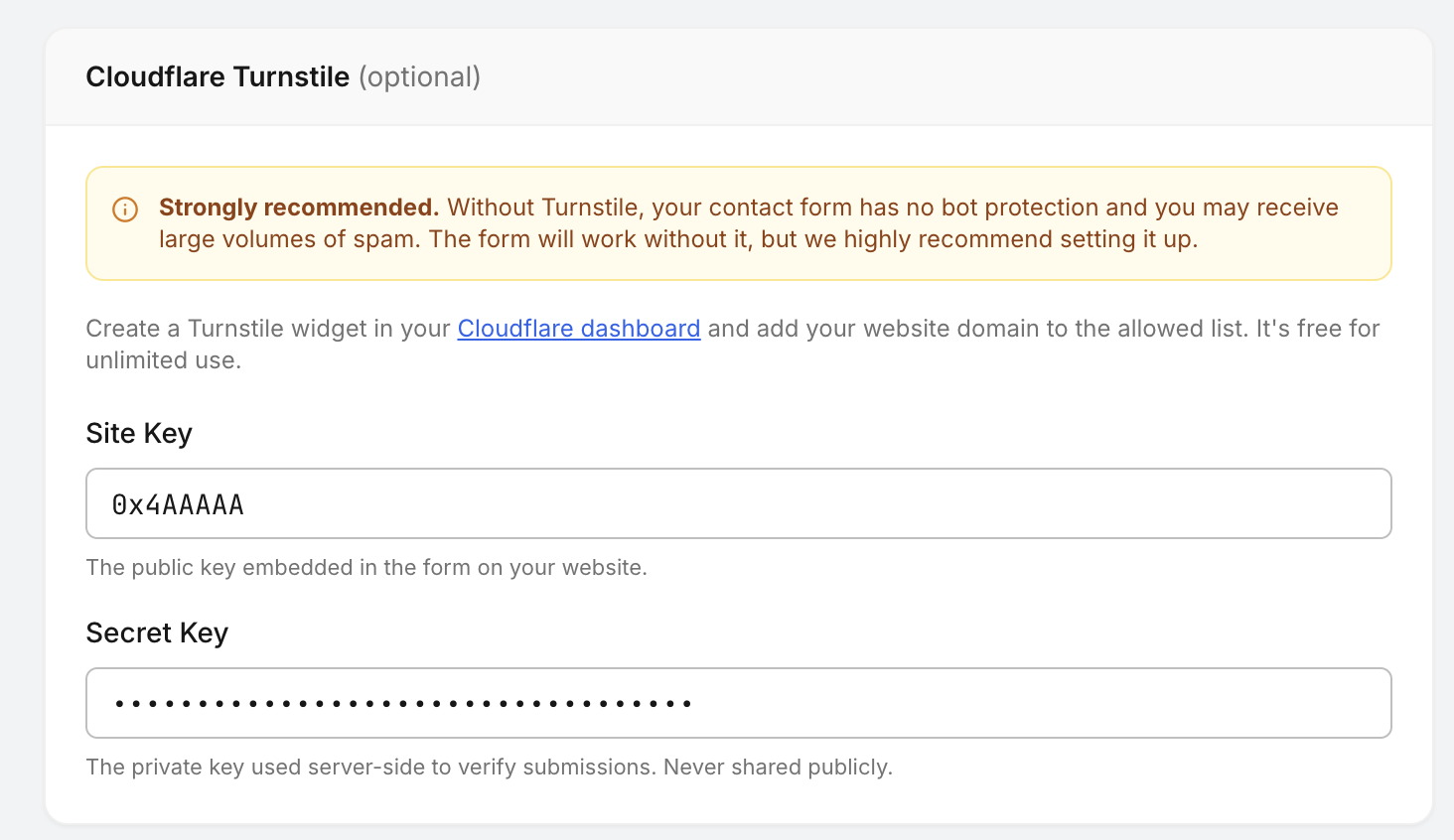
data-helpdesk-idmatches the value shown in your dashboard.If you front your Replit app with Cloudflare and want bot protection, follow the Cloudflare Turnstile Setup Guide.
Next Steps
Once the form is live, route inbound support emails into the same helpdesk by following the Email Forwarding Setup Guide. When you ship a logged in dashboard inside your Replit app, swap the public form for a Ticket Center so signed in users can see their full conversation history.
Cool Features
The contact form features some cool features that you can do.
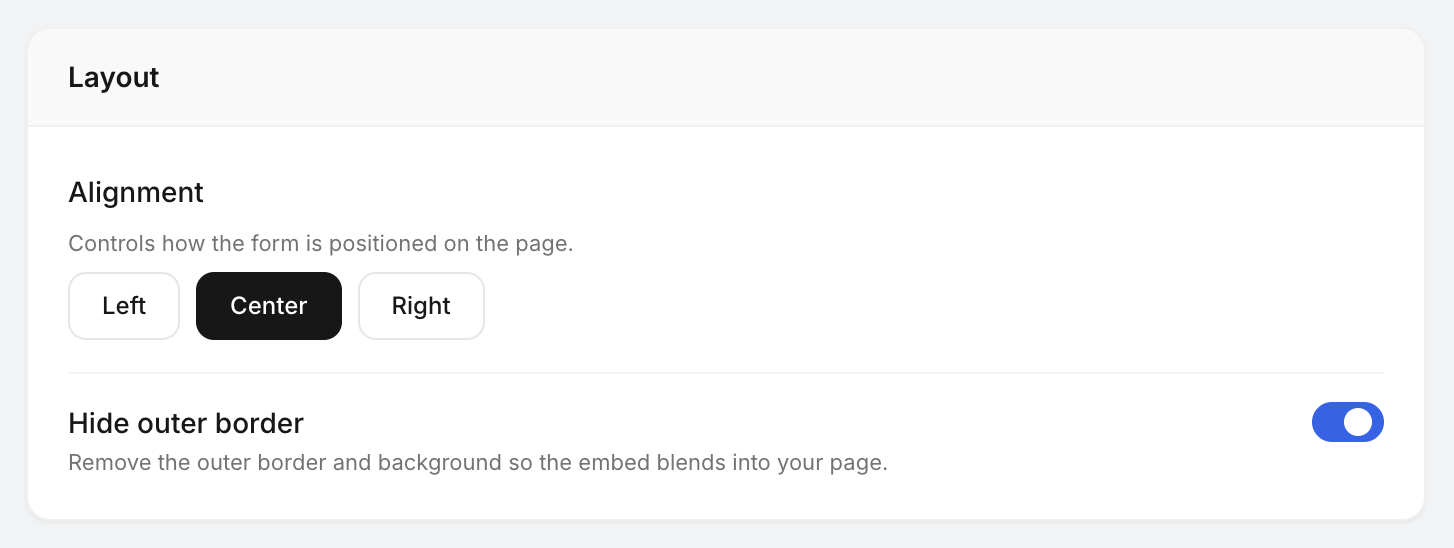
- Remove the border easily: this allows you to place the contact form without a background or border into any section so it instantly looks integrated into your site's/app's branding. Just go to the Contact Form page, go to "Layout" section and you will see an option for "Hide outer border". This will hide the border and background.
- Integrate Cloudflare Turnstile to protect your form from spammers. This requires you to host your domain in Cloudflare. All you need to do is go to your Cloudflare account, go to Turnstile, add your domain, create the keys, and copy them to Helpdesky Contact Form settings page.